Capture readings and photos
Updated August 9, 2026 · 1 walkthrough
Readings and photos are what turn a visit into a record worth keeping. The fields you are asked for are set by your office — you just fill them in.
Capture readings and photos
0:19On the phone
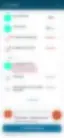
- The app tells you exactly what's still missing
- Tap What's missing
- Required before you start work · 8 — every blocker named, with the reason it is blocking
- Tap a field to enter its reading
- Tap the CO in flue row
- The keypad opens at 0 ppm with Save reading greyed out
- Punch in what you measured
- Tap 2
- The display reads 2 ppm and Save reading has come alive
- Second digit
- Tap 4
- The display reads 24 ppm
- One reading in — one fewer thing standing between you and the work
- Tap Save reading
- CO in flue reads 24 ppm, the unit's badge drops to 2 REQUIRED MISSING, and the footer counts down to 7 required items left
- Photos and checks count too — the gate holds until they're all in
Recorded August 2026
Readings are graded, not just recorded
Many readings carry a status alongside the number — acceptable, worth watching, or failed. A failed reading is what puts the item in front of the customer as work that needs doing, so the grade matters as much as the value.
Why the same fields keep appearing
Fields attached to a piece of equipment follow that equipment to every future visit. That is deliberate: it is what lets you see a reading trending the wrong way across a year rather than as a one-off number.
Photos and readings save to the job as you go, not in one batch at the end — losing signal mid-job does not lose the work you have already recorded.
More in Out in the field
Still have questions?